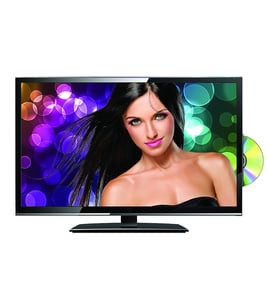

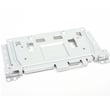
How to turn a Panasonic TV into a smart TV?
To make your Panasonic TC-L32E5 act like a smart TV, plug in an external streaming device (or a game console) to an HDMI port and connect that device to your home Wi-Fi. You will then stream apps and online video through the device instead of the TV.
Best ways to add streaming to the TC-L32E5
- Streaming stick/box (HDMI): The most common option; adds apps like Netflix, YouTube, and more.
- Game console (HDMI): Works like a streaming hub if you already own one.
- Laptop/PC (HDMI): Lets you play web video and use streaming websites.
- Phone casting or mirroring: Works only if your phone and TV setup supports a compatible casting or mirroring method.
- Blu-ray player with apps (HDMI): Some players include built-in streaming apps.
Quick setup checklist
- Connect the streaming device to an HDMI input on the TV.
- Power the device (USB or wall adapter, depending on the device).
- Use the TV remote to select the correct HDMI input.
- Follow the on-screen prompts to connect the device to Wi-Fi and sign in to your streaming accounts.
- If video looks stretched or cut off, adjust the TV’s picture size/aspect setting.
What to expect (smart TV vs add-on streamer)
| Feature | Built-in smart TV | TC-L32E5 with streaming device |
|---|---|---|
| App selection | Depends on TV platform | Depends on the device you choose |
| Updates | TV maker controls updates | Device maker controls updates |
| Speed | Varies by TV age | Often faster on newer streamers |
| Remote control | One remote | Sometimes one remote, sometimes two |
Why it matters
Using an external streamer is the most reliable way to get modern apps and better performance on an older LCD television. It also avoids compatibility limits that can come with built-in TV platforms.
For help with home network range and dropouts that can cause buffering, use our guide: how do i extend wi fi coverage in my home.
Last updated: February 2026
Is the Panasonic TC-L32E5 a smart TV?
Yes; the Panasonic TC-L32E5 is an internet-capable VIERA TV that can run Panasonic’s VIERA Connect apps when it’s connected to your home network. It does not have built-in Wi-Fi; wireless requires a compatible optional adapter, or you can use a wired Ethernet connection.
What “smart” means on the TC-L32E5
These are the practical capabilities most owners mean by “smart TV” on this model:
- Built-in network features for streaming-style apps (VIERA Connect)
- Wired internet connection through the LAN (Ethernet) port
- Wireless networking only when a compatible Wi-Fi adapter is installed
- App selection and performance are more limited than modern smart TV platforms
How to connect the TC-L32E5 to the internet
Use the option that matches your setup:
- Ethernet (most reliable): connect a router to the TV’s LAN port
- Wi-Fi (adapter required): install the compatible wireless adapter, then run wireless setup
- Network test: run the TV’s network connection test after setup
- Signal quality: if Wi-Fi drops, improve router placement or coverage
| Connection type | Works on TC-L32E5 | What you need |
|---|---|---|
| Ethernet (wired) | Yes | Router plus Ethernet cable |
| Wi-Fi (wireless) | Yes | Compatible optional Wi-Fi adapter plus router |
If apps will not load or streaming buffers
These steps fix most network-related issues:
- Power-cycle the TV and router (unplug for 60 seconds)
- Re-run network setup and confirm the TV gets a valid IP address
- Try Ethernet to rule out weak Wi-Fi coverage
- Improve wireless coverage if the TV is far from the router
Why it matters
Knowing the TC-L32E5 is network-capable helps you focus on network setup (Ethernet or Wi-Fi adapter) instead of assuming you must add a streaming device for basic app access.
For coverage improvements, use how do i extend wi fi coverage in my home.
Last updated: February 2026
What does TC-L32E5 mean?
For the Panasonic TC-L32E5 LCD television, TC-L32E5 is the model number used to identify the exact TV version so we can match the correct replacement parts and diagrams. In this context, it is not a texting abbreviation; it is Panasonic’s product identifier.
How to interpret the model number
Model numbers are typically a shorthand that combines series and key specs. For Panasonic TC-L32E5, the most useful takeaway is that the full model number must match exactly when you’re looking up Television parts.
Common model-number clues you may see:
- Brand prefix (often indicates product line or region)
- Screen size (many TVs include the size, such as “32” for a 32-inch class)
- Series identifier (helps separate feature sets within a brand)
- Revision/suffix (letters or numbers that can change the internal boards)
Why the exact model number matters for parts
Two TVs that look identical can use different internal components (power supply board, main board, T-CON board, IR sensor, speakers). Matching the model number helps avoid ordering the wrong part.
Here’s what usually changes between similar models:
| What can differ | What it affects | What you might notice |
|---|---|---|
| Main board version | Inputs, firmware, tuner | No signal, HDMI issues |
| Power supply board | Startup and backlight power | No power, clicking |
| Panel/backlight type | Picture and illumination | Dim screen, no backlight |
| Button/IR board | Controls and remote sensor | Buttons not working |
Where to find the model number on the TV
Check these common locations:
- Back of the TV on the rating label
- Side or rear panel near the inputs
- Original box label (if you still have it)
- TV menu (often under Support or System Information)
For help confirming you’re reading the label correctly, use how to find your appliance model number (and what it means for parts).
Why it matters
Using TC-L32E5 (not just “Panasonic 32-inch”) is the fastest way to pull the correct diagrams and ensure compatibility when troubleshooting or replacing electronic boards.
Last updated: February 2026